
Purpose
To detail access methods for your library site, and assist with several different scernaios
Covers: Accessing your library site
Does not cover: Assigning student login information
Instructions
The first and most important step in being able to use your library system is being able to access and log into it.
New Users
The first thing you need is your hosted system URL, this can be used to access the library site from any device with an internet connection, including from home if you work remotely. This can be embedded into your school's website so that students can easily log in from home too. If can also be pushed out across all devices using group policy.
Note: We recommend bookmarking/favouriting the library site for easy access going forward.
Now that you have loaded your site, you will need to log in. If this is your first time with Reading Cloud, you will have received an email with an access link. Clicking this will automatically log you into management, you will then be prompted to set your administrator password. Once you have done so, please delete the email and do not use the link again, as it will wipe your password and you will have to do it all over again.
Once you have access to management, ensure that a recovery email address is set for password resets.
Password Resets
Should you forget and need to reset your password, the process is different depending on your system:
Change of staff
If you are new to the librarian role, or you are leaving the school and a new member of staff will be taking over the role of managing the library, please ensure that a full handover is carried out.
Access issues
There are a few error messages that could appear when attempting to login, such as an 'Error undefined' message.
You may receive a message saying that your site has expired. 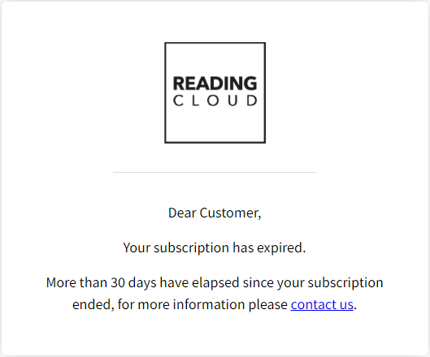
This is because 30 days has passed since the expiration date of your subscription and we are yet to receive any payment or proof of payment.
If you are receiving this message, please contact your bursar or whoever pays the invoices and ask that the invoice be paid as soon as possible.
Once you have obtained proof of payment, you can email our admin department with the proof of payment and they will be able to reactivate your account early and provide access once again. They can also provide assistance, if you are unsure who the invoice was sent to.
Please also ensure that you are not searching for your site via google or any other search engine, you must use your direct URL. If not, you may be unable to access or receive an error message that your site is unlicensed for this interface.
How some of our other customers have phrased this
- How do I access Reading Cloud?
- Why am I seeing an subscription expired message?