
Purpose
To provide information on the usage of the Details tab in a Borrower record card.
Covers: Viewing and editing of borrower details.
This section does not cover: Adding a borrower, creating tutor groups.
When to Do This
When checking Borrower data, when data needs to be manually updated or removed from a record.
Instructions
The Details tab on a borrower's record card holds most of the information for that borrower.
Most of the details that are stored on a borrower's record card can be imported from a CSV file or using our automated solution.
The details tab is split into four further tabs:
Borrower
Select the 'Details' tab, and ensure 'Borrower' is selected.

The first part of a borrower record card covers the forename, surname, title and gender. Select the Details tab.

The 'Forename' and 'Surname' boxes are both mandatory whereas the 'Title' and 'Gender' are both optional. Some of the reports use the gender to compare borrowing statistics so we advise this is entered.
Next are the date of birth, age, group name, year group, ethnicity, UPN, house, set and or english set.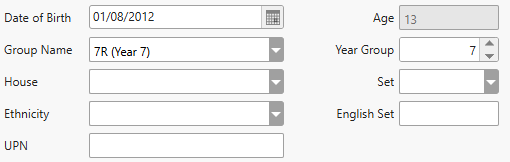
Use the calendar icon (shown below) next to the 'Date of Birth' box to select the date of birth or type one in using a forward slash to separate the day month and year. 
'Age' is calculated automatically based on the date entered the 'Date of Birth' box.
The 'Group Name' box displays a list of all groups present in the Tutor Groups table. It is not possible to create a group by typing one in, if you need to enter a group that is not here, you need to create it first. The group name is a required field. Selecting a Group here will add this student record to that Tutor Group.
When a group name is selected, the 'Year Group' box will be automatically populated with the year group of that group. If this needs to be altered (for example when using vertical Tutor Groups), change the year group to the correct number by typing this in.
A 'House' and 'Set' can be selected from the relevant boxes. 'Set' can also be used to assign a specific library group - if this is separate to the Student's tutor group. English Set can be used to assign their English Class To add a new house or set, simply type one in. This can also be imported via CSV.
The next group of boxes are for the contact numbers, email and language as well as tick boxes for free school meals, pupil premium and special educational needs.

An ethnicity can be typed in, or selected from the list if others are present already. The contact numbers are 3 separate boxes for 'Telephone', 'Work' and 'Mobile'. These are optional fields that can be entered if required. A language can be selected from the 'Language' list.
The 'Free school meals', 'Pupil Premium' and 'Special Educational Needs' tick boxes are optional, they can be ticked to reflect the data kept in your MIS. This data in particular can be used to create reports and find reading trends.
The Photograph section is on the right-hand side of the record card. This is where the photograph of the borrower is stored and can be deleted or manually updated if necessary.
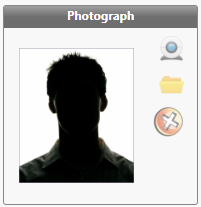
Click the camera icon  to update the photograph with a webcam if one is connected.
Click folder icon  to browse for an image file such as a PNG, JPG or JPEG.
If a photograph is already present and needs to be deleted, click the delete icon  .
.
Information in fields other than Gender, DOB, Age, Group Name and Year Group can be removed by deleting the text from the applicable field.
Note: Emails, Phone Numbers and Set can be imported via a CSV.
If you use Wonde, this information can also be imported via an automatic sync - along with Photograph, Special Educational Needs, Pupil Premium and Free School Meals indicators. These cannot be imported via CSV.
Address
Select the Address tab.

The 'Address' tab stores the borrower's address. This information is used when including address details on reminders.
The details can be entered into these fields by typing into the appropriate text boxes. The first 'Address' field represents address line 1, the second text box address line 2, etc.
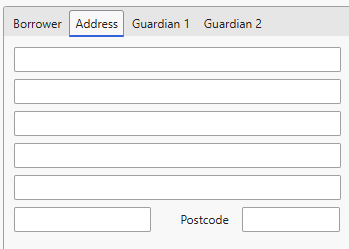
Once you have entered the information, click 'Save' to update the record.
Guardian 1 & Guardian 2
Select the Guardian 1 or Guardian 2 tab. This will display the guardian specific information fields.
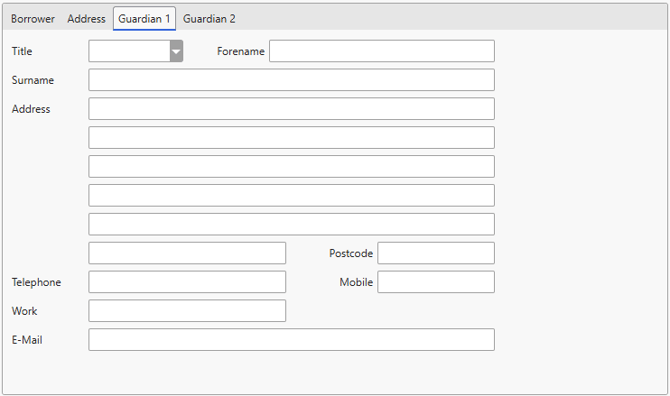
The mandatory fields for a guardian record are 'Title', 'Forename' and 'Surname'.
Enter the information in each field as required, or delete it if no longer needed.
There are two guardian tabs, enabling you to include information for two different guardians. This information can be used in a reminder. Instead of being addressed to the borrower, it can be addressed to a nominated guardian. If you intend to send reminders via email, please ensure that the email address is present and correct in the E-Mail field for the guardian in question.
How some of our other customers have phrased this
- Can I edit details of an individual borrower?
- Where can I add information to a borrower's details?
- Is it possible to input a student's address?
- Can parent/guardian information be included on a Borrower's record?