
Purpose
To explain how the order of reminder templates can be amended
Covers: Altering reminder template order
Does not cover: Amending reminders text, options or grid
Instructions
Default and custom reminders can be modified so the order in which they are sent out best suits your needs.
Individual reminders are sent to borrowers or guardians in an order that has been specified within the library system.
To change the order in which the set reminders are sent, select 'Settings' from the top of the Management page and then select 'Reminders & Statements...'.
Select the type of reminder from the menu (Individual, Group, Memo etc.).
The reminders are listed on the screen in the order that will be sent. To alter this order, click to highlight a reminder record in the list.
Click the up and down arrows with a reminder selected to move it up or down.
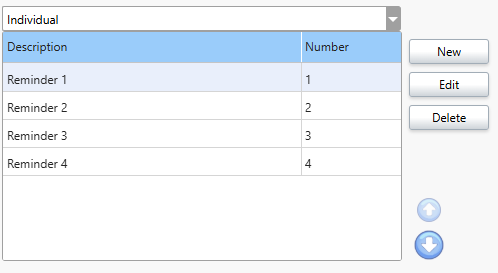
The order will then be changed.
Click 'OK' to save the changes when you are happy with the order.
Get the most out of Reading Cloud with our flexible training packages delivered at a level and pace that suits your needs. Find out more.
How some of our other customers have phrased this
- How do I set which reminder is sent first?
- Can I tell the system which order to send reminders?