
Purpose
This article explains how Reading Cloud integrates fully with the Dewey decimal system and allows you to keep track of the classifications of your resources.
Covers: Viewing the classifications table, adding classifications
Instructions
The Classifications table allows you to define all your classifications, it comes pre-populated with an extensive list of classifications, but you can always define more. You can also import a list as provided by your SLS.
The Class Colour Code table allows you to define colours and assign them to the classifications. These colours will then show in class field within the resources database.
To find the Classifications table, within Management select 'Database' on the menu bar at the top of the page and select 'Lookup Maintenance' then 'Classifications' from the list.
Assigning Classifications
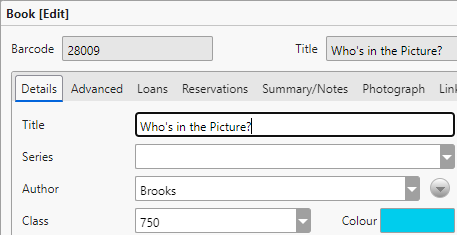
When you import your resources via a MARC file, or add them manually, the class field may be automatically populated by the data from the MARC file, our online database or your custom/existing catalogue. If the class is correct and you are happy, you can leave it there, if however you feel it is wrong, you can alter it manually.
For fiction resources, you can use either the word "Fiction" or the Dewey class range.
The colour will show in the colour box, this cannot be changed here, if the colour is wrong, you need to change the number, or change the colour from the Class Colour Code table.
At the bottom of the record card is the Fiction tick box, this needs to be ticked for any fiction resources, even if you use "Fiction" in the class box. This box allows for you to be able to find resources when searching by "Fiction" and still use the fiction Dewey class range.
Using Classifications
Now that your classifications are set, there are a multitude of uses for them.- You can use label print to create spine labels with the Dewey class on them.
- You can create page views to filter the table to only certain class ranges, these can be used on both Management and the Borrower Portal.
- You can generate a report to show how many resources you have in each class.
- You can filter by class when creating a stock check.
Importing Classifications
The import can be completed from either the Classifications table or the Class Colour Code table.
Log into the library system and load Management then select 'Database' from the menu bar at the top of the page, followed by 'Lookup Maintenance' and 'classifications' from the list.
Select 'Tools' on the menu bar at the top of the page and select 'Import...' from the list.
Select one of the Classifications types and press 'Import'. Click 'Yes' on the confirmation box and the classifications will be imported.
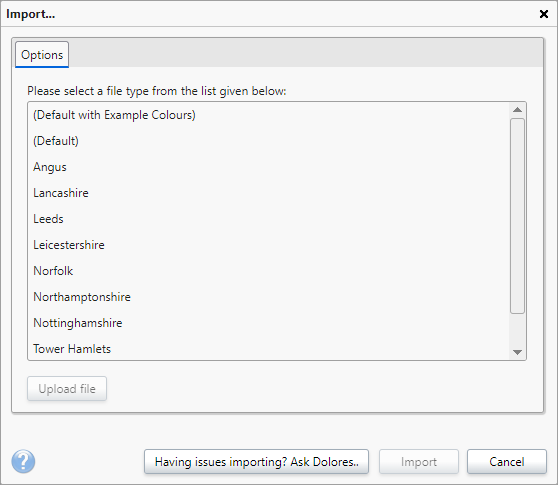
Repeat these steps for the 'Class Colour Code' table.
Adding Classifications Manually
Log into the library system and load Management.
Select 'Database' on the menu bar at the top of the page and select 'Lookup Maintenance' then 'Classifications' from the list. You will now see a list of all current classifications in the table.
In the menu on the right-hand side, select 'Add' then enter the new Class and Keyword into the text boxes.
Once entered, click 'Save'.
You can assign a colour code to a classification so that it displays in the Management grid.
Log into your library system and load Management. Select 'Database' from the menu bar at the top of the page and select 'Lookup Maintenance' and 'Class Colour Code' from the menu.
Click 'New' on the right-hand menu.
Choose a colour code by clicking on the 'Colour' box and either selecting from the spectrum or entering a HEX or RGB code.
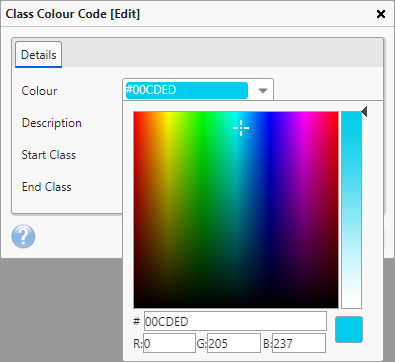
Enter a description for this colour code range.
Choose a starting classification and enter this into the 'Start Class' text box.
Enter the end of the range into the 'End Class' text box.
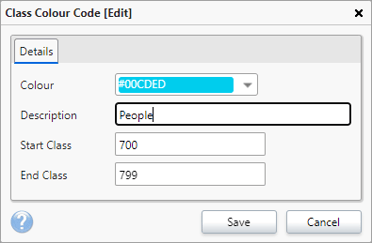
Click 'Save' to confirm the class colour code.
Now when viewing the catalogue, any resources that fall into this range will display with the colour code as the background.
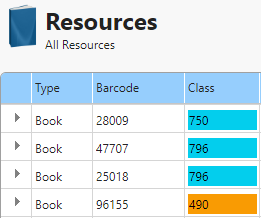
The colour code will also display on a resource record card in the 'Colour' space.
How some of our other customers have asked this
- Can I add to the list of available classifications?