
Purpose
To provide instruction on how the Cache of your web browser can be cleared
Covers: Clearing browser cache
Instructions
Web browsers and Proxy filtering servers cache websites to allow quicker access to users. However, on occasions the new website data/code is not retrieved which can cause some display issues, faults not be resolved or other issues with the website.
Most of the time a refresh (click F5 on the keyboard) or a force refresh (Ctrl + F5 on the keyboard), can force the browser to request the latest website content resolving these issue immediately.
If you are still experiencing issues then clearing the browser cache can fully flush out any locally held website data.
Below are instructions for several popular browsers, as the steps to clear the cache vary depending on the browser used. If certain options listed are not available to you you will need to contact your IT team for assistance.
Google Chrome
- In the top right-hand corner, next to the URL bar there are 3 dots in a vertical line, click this.
- From the menu select 'Delete Browsing Data'

- Change the time range to 'All time'.

- Ensure all boxes are ticked
- Click 'Delete from this device'
- Once the box has disappeared close down all browser windows.
Microsoft Edge
- Make sure you have the window maximised.
- In the top right-hand corner there are 3 dots in a line, click this.
- In the menu that appears select 'Settings'.

- On the left-hand side you will now see a 'Settings' menu, this will not appear if you do not have the window maximised.
- Click 'Privacy, search, and services'.
- Under 'Clear browsing data', select 'Choose what to clear'.
- Tick 'Browsing history', 'Download history' 'Cookies and saved website data' and 'Cached images and files'.
- Click 'Clear now'.
- When the box disappears, close down all browser windows.
Mozilla Firefox
- In the top right-hand corner there is an icon of 3 lines (burger menu) click this.
- Select 'Settings'.
- Select 'Privacy & Security' on the left.
- Under 'Cookies and Site Data' select 'Clear Browsing Data...'.
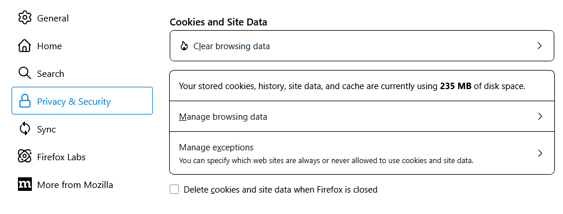
- Under 'When' select 'Everything'.
- Tick 'Cookies and Site Data' & 'Temporary caches files and pages'
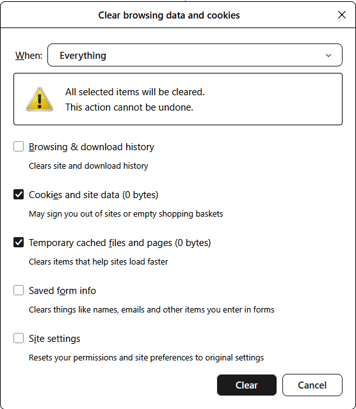
- Click 'Clear '.
- Once complete, close down all browser windows.
Safari
- On the menu bar at the top of the page, ensure you have 'Develop' visible. If it is not visible, click the 'Safari' option and select 'Settings...'
- On the next window, select 'Advanced' and then tick the box for 'Show Develop menu in menu bar' and close this box.
- Click 'Develop' on the menu bar at the top of the page.
- Click 'Empty Caches'.
- Close down all browser windows.
How some of our customers have phrased this
- How do I clear the cache of my browser?