
Purpose
This article details how you can complete and close a stock check
Covers: Closing and completing a stock check
Does not cover: Opening a stock check, adding to a stock check
Instructions
Once all of your resources have been checked into the stock check and the 'Missing items' list has been reviewed, the stock check can be completed.
From the main stock check interface, click 'Complete'.
The 'Completion' window will open showing the options that are available when completing the stock check.
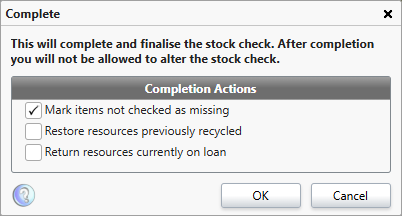
Mark items not checked as missing
When you scan a book into a stock check it marks the book as checked, ticking this option will mark any book that was not checked (scanned) into the stock check as missing and move it to the recycle bin. If you did not tick to exclude items that are currently on loan when creating the stock check this will include any current loans that were not scanned so exercise caution.
Restore resources previously recycled
When scanning resources you may scan an item previously thought lost. If such a resource is scanned into a stock check then the resource is pulled into the stock check. Ticking this box will remove the missing mark from the resource and return it to the resource database to be put back into circulation.
Return resources currently on loan
If you did not tick to include items currently on loan and you scan a resource that is currently on loan it will be pulled into the stock check. This would occur if a borrower simply returns the book to the library without informing you. Ticking this option will return the loan and remove the current loan from the borrower and the resource record cards and remove it from the current loans table.
Note that all of these optional actions only affect items that are part of the stock check and happen only when the stock check has been completed. So returning resources would only affect the items that have been scanned, not all current loans.
Please choose these options carefully, a completed stock check cannot be undone. Click 'OK' to finalise and complete the stock check. Once a stock check has been completed, it stays listed in the 'Stock Check' window to be viewed as required. A completed stock check cannot be modified.
Get the most out of Reading Cloud with our flexible training packages delivered at a level and pace that suits your needs. Find out more.
How some of our other customers have phrased this
- How do I finish a stock check?
- What do I do when I have scanned all the books for stock check?