
Purpose
This article outlines the process of adding a new periodical article
Covers: Adding a periodical or journal article
Does not cover: Adding a periodical issue
Instructions
Periodical Articles cannot be catalogued independently, they must be attached to a particular issue. If you are following the steps in this topic, ensure that you have catalogued at least one Periodical Issue.
Although the steps in this topic refer to 'Periodicals', the content in this topic also applies to cataloguing 'Journal Articles'. You need to select 'Journal' instead of 'Periodical' where applicable.
There are two ways to catalogue a 'Periodical article'. The first method is done by using the new resource window, whereas the second method can be done from the appropriate periodical issue directly.
Adding an article using New Resource window
Click 'Resources' in the left-hand menu.
Click 'New' in the right-hand menu and select 'Periodical' from the cataloguing screen.
On the cataloguing screen, select 'Periodical' then select the 'Periodical Article' option.
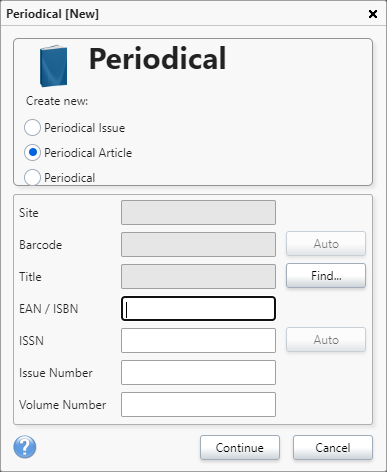
Next to the 'Periodical Title' field, click the 'Find' button. Select the 'Periodical' Issue that you wish to attach the article to and click 'Select'.
This automatically fills in the 'Title', 'ISBN', 'ISSN', 'Issue Number' and 'Volume Number' fields. In addition, notice that the barcode field is also unavailable. This is because an article is not a physical resource, like the Issue.
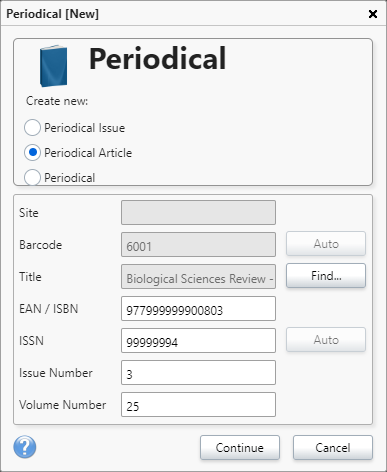
Click 'Continue' to launch the record card.
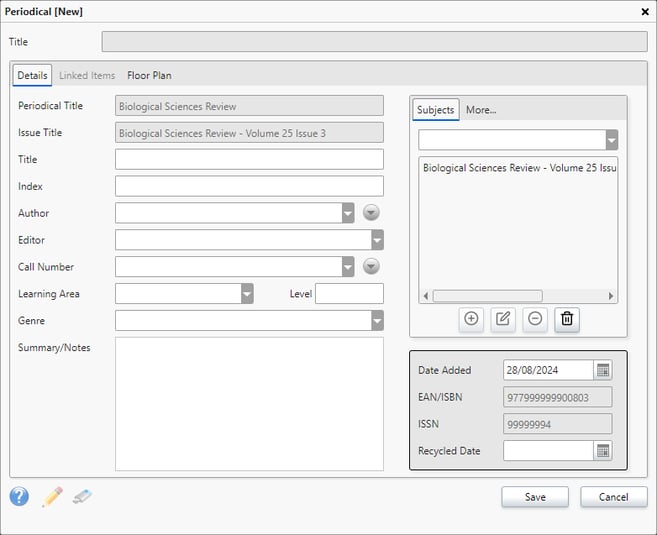
The details on the catalogue record have been entered automatically, due to them being pulled from the parent record (the Issue). The details on the article record card are also noticeably different from the Issue record card. The fields on this record card should be used to describe the content of the article, using the 'Title', 'Index' (so the reader knows where in the Issue to find it), 'Author' and 'Summary' fields.
Click 'Save' after making any changes.
Adding an article through an existing Issue
Using the Issue window to catalogue articles is often the quickest method due to it all being done through one area.
Log into your library system and load the Management page, then click 'Resources' in the left-hand menu.
Using Quick Search in the top right-hand corner, search for the issue you wish to add an article to.
Once located, click on the record required and click 'Edit in the in the right-hand menu, then click the 'Articles' tab.
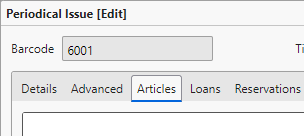
This tab shows any Periodical Articles that have been attached to the Periodical Issue. If none have been created and attached then this area will be empty.
To begin adding a Periodical Article, click the 'Add' button. This will load a Periodical Article window, where the details of the article can be entered. Notice that a number of the fields will be automatically populated from the issue you selected.
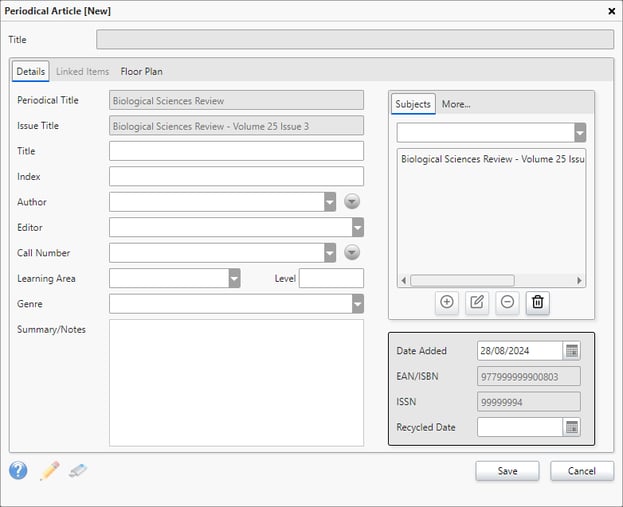
The details on the article record card are noticeably different from the Issue record card. The fields on this record card should be used to describe the content of the article, using the 'Title', 'Index' (so the reader knows where in the Issue to find it), 'Author' and 'Summary' fields.
Click 'Save' to return to the Periodical Issue window.
Add any further Periodical Articles as required and click 'Save'.