
Purpose
To detail how a reading list can be created using the Reading List interface in Management
Covers: Creating a Reading List
Instructions
From the Reading List interface you can create a new reading list and share the list with your borrowers.
Get the most out of Reading Cloud with our flexible training packages delivered at a level and pace that suits your needs. Find out more.
Click on 'Tools' on the menu bar at the top of the Management window and select 'Reading Lists'.
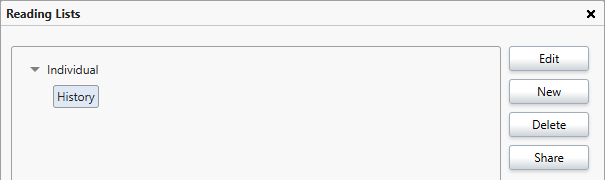
From here you can create a new reading list, delete or edit an existing reading list, or share a reading list. Using the share option, you can get a link to a list of resources that can then be emailed, added to your school website, or used in whatever way you like.
To begin creating a new reading list, click 'New'.
A 'New' box will open, allowing you to enter the details for this reading list.
Start by giving the reading list a 'Name' and 'Description'.
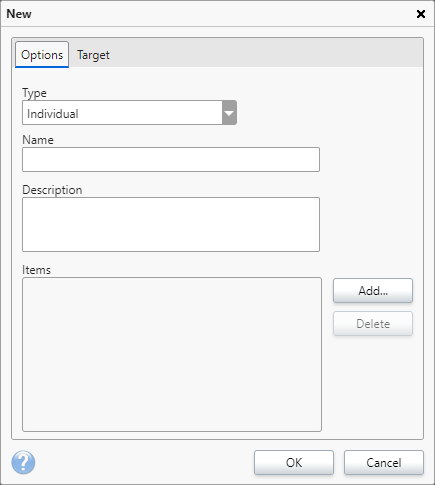
Select the type of reading list you wish to create by selecting from the 'Type' menu.
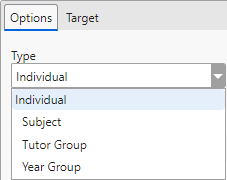
What you select from the 'Type' menu will change what shows on the 'Target' tab. For example, if you choose "Year Group", you will be able to select available year groups that the reading list applies to. Should you select Individual, you will be able to select the individual borrowers it should apply to.
A reading list will only show for the borrowers you have targeted it at.
To begin adding items to the new reading list, click 'Add'.
Search for a resource that you wish to add to the reading list and click 'Select'.
That resource will be added to the reading list.
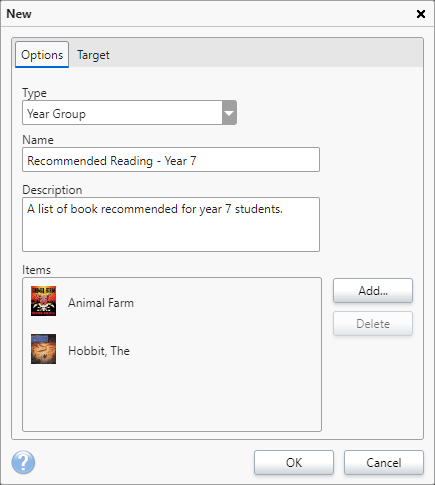
Repeat this process for all resources that you wish to add to the reading list.
Using the 'Target' tab, you can specify the borrowers that the reading list will show for. The options that show on this tab will vary, depending on what you have selected from the 'Type' drop down menu.
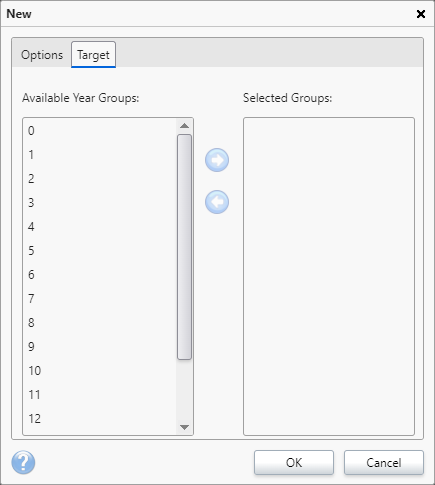
Once you are happy with the settings on the 'Target' tab, click 'OK' to save them.
Click 'OK' on the Reading Lists box to save those settings.
If you wish to edit a Reading List, open the Reading Lists interface by selecting 'Tools' from the top menu, then select Reading Lists.
Once the new window opens, select the Reading List you wish to amend and then select 'Edit'.
From here you can select the 'Options' tab to edit the listed resources, or the 'Target' tab to change who this list is available to.
How some of our other customers have phrased this
- How do I create a Reading list for my students?
- Can I change who is able to access a particular reading list?
- Is it possible to edit a Reading List?