
Purpose
To provide information on the Custom Field options
Covers: Viewing and Creating Custom Fields
Does not cover: Editing Resources, Borrowers or Tutor Groups
Instructions
When adding resources, borrowers or tutor groups, you can use custom fields to store information that there is nowhere for by default in the record card.
Within Management, select the 'Settings' option from the menu bar at the top of the page. From the list of available options click 'Fields...'.
The 'Fields...' window will open on the 'Custom Fields' tab.
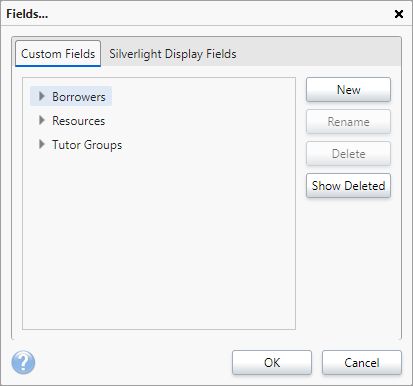
Select the table in which the custom field needs to be created/edited.
- To remove an existing field, select the field in question and click 'Delete'.
- To modify an existing field, select the field in question and click 'Rename'.
Adding a New Custom Field
To create a new field select the record type you wish this to appear under, then click the New button. The 'Add Field' box will open.
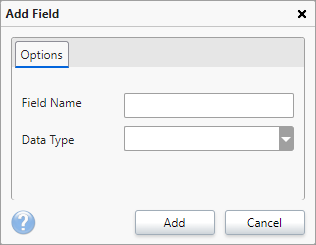
Enter the name of the field you wish to create in the 'Field Name' text box and select a type from the 'Data Type' box. Click 'Add' to add the field and return to the previous window.
After a new custom field has been created, it can be accessed by viewing the appropriate borrower, resource or tutor group record card and is generally found on the advanced tab.
You may need to close and reload your browser before any changes are reflected.
How some of our other customers have phrased this
- What is a custom field?
- Can I add a custom field to Resources?