
Purpose
To detail how reminder templates can be amended
Covers: Editing reminder text, layout, grid and
Before you can generate a reminder, memo or statement, you need to create it.
There are 4 types of reminders:
- Individual reminders will normally contain a body of text to tell the borrower (or guardian, depending on who you send it to) that their resources are overdue and need to be returned to the library.
- Group Reminders are sent to the tutor of a tutor group and they contain all borrowers in that group with resources on loan all on one page, allowing the tutor to remind the borrowers in question during form time.
- A Memo is used to send messages to specific borrowers (or everyone) without affecting their individual reminder number. This can be a reminder to return resources or even a notification of upcoming events or news articles.
- A Statement is used to inform borrowers that they have a negative monetary amount on their account and they need to pay the library.
Get the most out of Reading Cloud with our flexible training packages delivered at a level and pace that suits your needs. Find out more.
Instructions
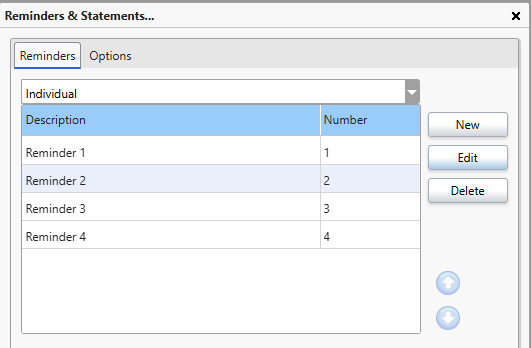
Open Reminders & Statements through Settings. Then in the box that appears, click the desired reminder type from the menu.
Once the type is chosen, select a reminder from the list and click 'Edit'.
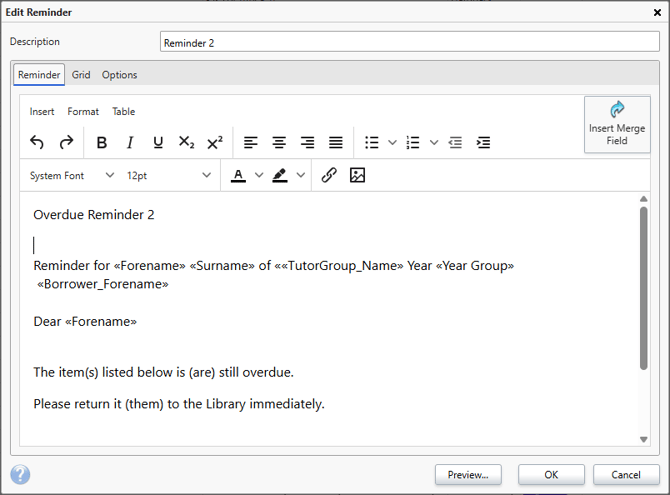
The reminder editing screen will appear, the 3 tabs each offer different functions.
Reminder Tab
The 'Reminder' tab is where you can edit the text and images (such as the school logo) which appears in the reminder. There are basic text editing functions available such as being able to change the font type & colour, altering the background colour, adding images to the reminder and the merge fields.
The 'Description' box allows you to provide each reminder with its own unique identifier.
Use the control bar to modify the font style, page layout, insert a picture and use the other formatting options.
Use the text window to enter in any information you wish to relay to the borrower.
Note that pressing enter at the end of a line will give a paragraph sized line break, if you wish to have some lines grouped more closely, such as when writing an address, hold shift before pressing enter and the line spacing will be less.
The 'Preview...' button can be used at anytime to show how the reminder will look with any changes made.
Using Merge Fields
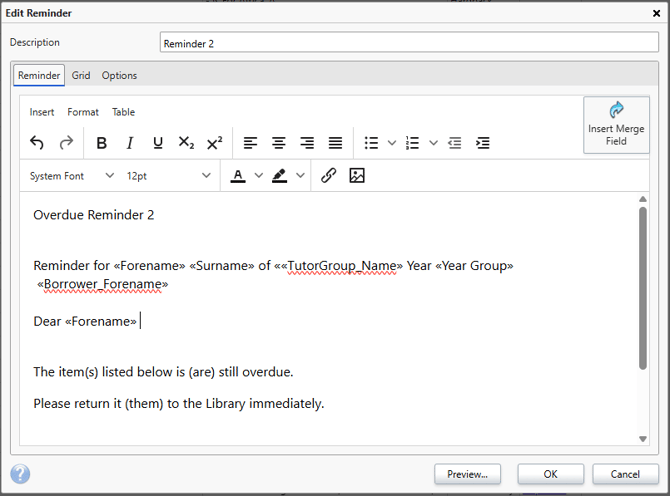
Merge fields can be used to insert variables into any type of reminder. This is a big time saver as it acts as a place-holder which can be inserted and at the point of generating a reminder it will be substituted for the varying data, for example, a borrowers Forename and Surname.
On the 'Reminder' tab of the editing interface insert the cursor where the desired field is to be inserted.
With the cursor in the correct position, click 'Insert Merge Field'.
Select the required field by clicking it once to add into the reminder.
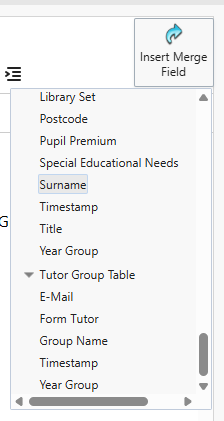
Notice that where the cursor was flashing there is now a placeholder for the selected field.
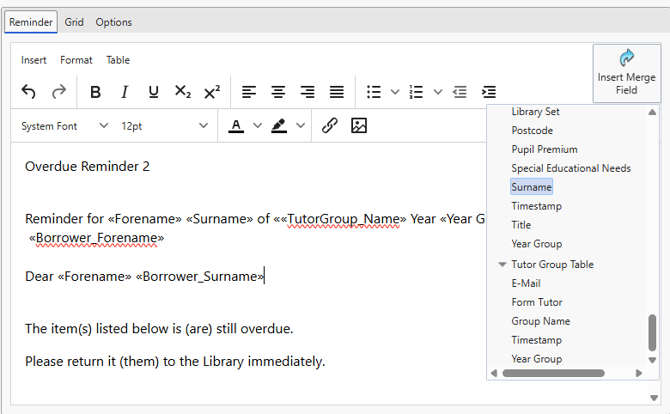
After the changes have been made as required, click 'OK' to save.
The same steps can be repeated for as many fields as necessary and be different on every reminder.
Grid Tab
The 'Grid' tab controls the fields that appear in the table of a reminder when it is generated.
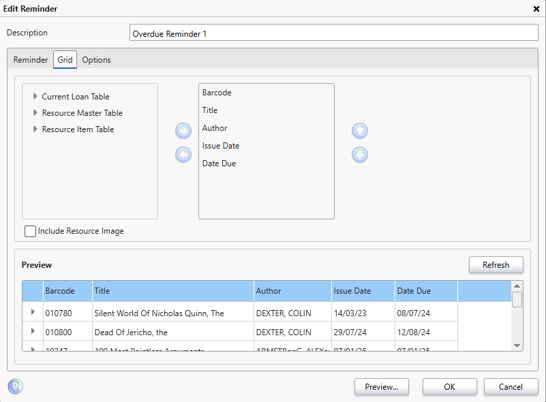
Options Tab
The 'Options' tab contains the settings for the reminder orientation & margins and allows control over whether the reminder is sent to the student or Guardian and by which method.
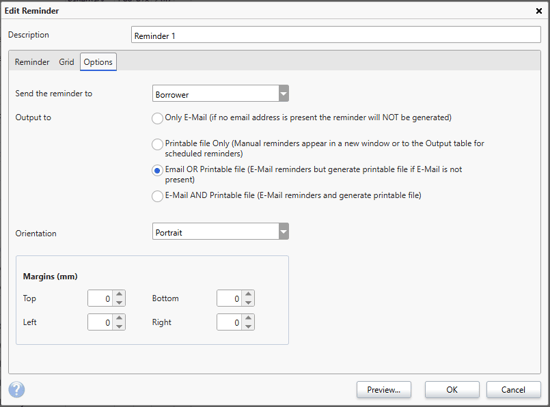
When the changes have been made, click 'OK' to save them.
FAQs
Q: Can I add a header/footer to a reminder?
A: There is no function within a reminder template to add a header or footer. However, one can be added by editing the required reminder and either importing a saved header/footer image or manually creating one at the top and bottom of the template.
Q: Does the order of the templates in 'Statements and Reminders' affect how they are generated?
A: If you use Scheduled Reminders or Manual Reminders without using the 'Output Selected Reminder only' option, it will follow the order of the reminders as they appear in 'Statements and Reminders'.
Q: How do I change the email address the reminders are sent from?
A: We do not recommend sending reminder emails from a custom email address, we have a default noreply email address that reminders will be sent from which requires no configuration changes.
How some of our other customer have phrased this
- How do I change the reminders?
- Can I amend how reminders appear?
- Where do I set if a reminder is sent to a parent or guardian?