
Purpose
This article gives an overview of the options and functions available from the Junior Classic interface homepage
Covers: Junior Classic Homepage
Does not cover: Reading Cloud homepage
Instructions
The Junior Librarian interface is designed with younger children in mind. Designed to be clear and simple, allowing easy access to base functions of the system. This article, and it's included video give information on the options and functions available.
Logon

This is where you will access the login screen, and enter your username and password. Many of the functions require an account to be logged in to use. When you are logged in, this button changes to 'Log off'.
Librarian Only
This button is used to access the Management section, but this button will be greyed out if the account does not have Administrator or Librarian level permissions.
Circulate
Circulate is one of your main tools. This allows you to issue and return books to pupils. Clicking this will open a a new window.
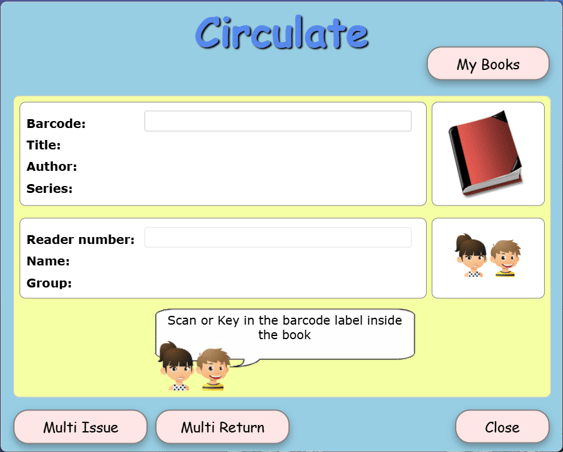
You will then scan, or type in the resource barcode. This will locate the record, and display it's information.
Then, you can scan or type the student's Borrower barcode in the 'Reader number' box, and when entered the book will be issued.
To return a resource that is currently on loan, simply scan the resource barcode. The system will locate the resource, and return it.
Enquiry
This opens the search interface, which has many different options for locating resources. By default, this will open and display the options for picture search which allows a user to search for resources by Topic.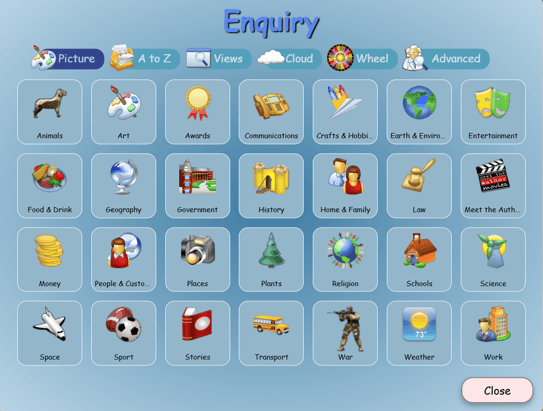
'A to Z' allow you to search by Author, Title, Series or Genre, and filter this by letter.
'Views' lists view created in management, that have been enabled for use in the OPAC.
'Cloud' uses a Word Cloud that shows the most popular search terms used in the school. Any word can be selected by clicking on it, and the system will search using that term.
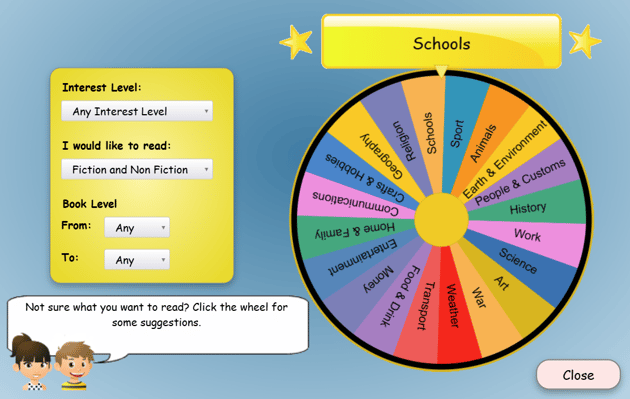
'Wheel' is a selection tool that can be used to randomise a search, useful if a student is unsure what to read next and is looking for suggestions. The results can be filtered by Interest Level, Fiction/Non-Fiction, and by Book Level. Clicking the wheel makes it spin and select a topic. The system will then run a search based on the settings and topic selected.
'Advanced' allows for a much more controlled search. This works with the same principles as Advanced Search within Management, but restricted to Resource information. This allows you to specify multiple different values to tailor your search exactly.
Clicking the 'Close' button in the bottom right at any time will bring you back to the main page.
Settings

Clicking this button opens the Homepage settings, which allows you to change the homepage theme, background and language.
This is also where you can unlock circulate.
My Account
This box will display the name of the account that is currently logged in. Also you can see how many current and past loans the account has.
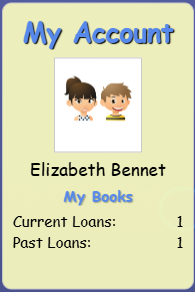
You can also select 'My Books' which will open a new window. This allows you to see which books the current account has outstanding. If you tick 'Include my past loans' this will show any previous loans that the borrower has.
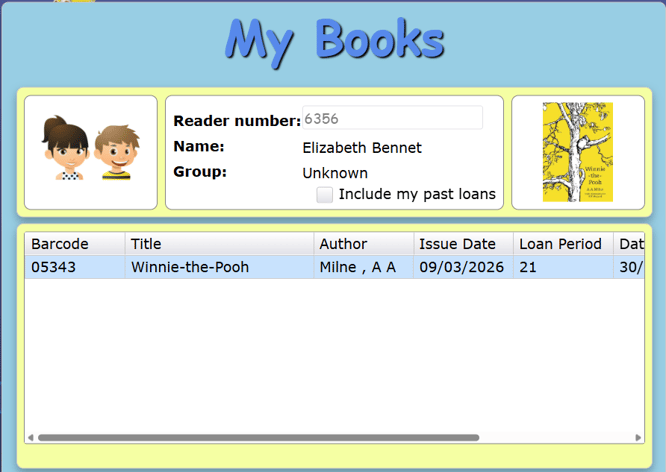
You can also use this page to look up another borrower. If you scan their barcode, the system will change to display the information of the borrower you have scanned.
You can also clear the information shown by pressing the ESC key on your keyboard. You will then be able to click into the 'Reader number' field, and type in a barcode.
How some of our other customers have phrased this
- What is available on the Junior Classic homepage?
- How do I issue books in Junior Librarian?
- Can student search for books on Junior Librarian?