
Purpose
This articles provides instruction on keywords, and how they can be added to resource records
Instructions
Keywords are terms added to a resource to allow people browsing the catalogue to better find what they are looking for.
Keywords can be added to a resource record directly, and you can also use the Add Keywords function to add keywords to groups of records en masse.
Adding Keywords to a Resource
Select Resources on the left-hand side and locate the Resource Record you would like to update using either quick search or advanced search.
Open the Resource Record and under the Details Tab you will find the keywords on the right-hand side.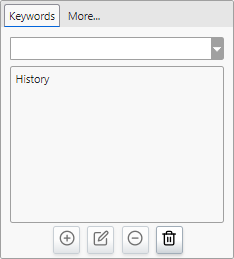
You can type a keyword into the box at the top then click the 'Add'  button. Or select one from the drop down list to attach it to the record.
You can also remove a keyword form a record by selecting it, and then clicking the 'Remove'  button.
Click 'Save' to update the Keywords for that Resource.
Add Keywords to Multiple Resources
The Add Keywords tool will add keywords to all resources that are shown on screen, therefore it is essential that you first filter the records to only those you wish to add the keywords to. To filter the records use Flagging, Quick Search or Advanced Search.
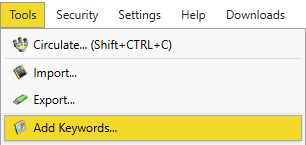
Select 'Tools' on the menu bar at the top of the screen and select 'Add Keywords' from the menu.
Enter a keyword into the 'Add Keyword' box and click the 'Add' button. The new keyword will be moved into the Keyword list. Repeat this process for each new keyword you wish to add. If the keyword you wish to add is already in use in your system, you can select it from this list.
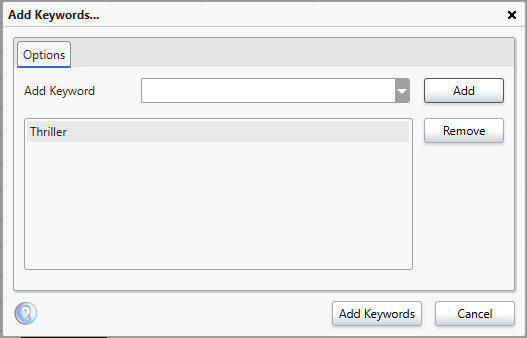
Once you have your list of keywords you would like to add, click 'Add Keywords' and they will be applied to all records in the current selection.
How some of our other customers have phrased this
- Can I add a new keyword to a resource?
- Is it possible to remove a keyword from a book?