
Purpose
To explain the steps in the import process for Marc files.
Covers: Importing resources via marc files
Does not cover: Cataloguing individual resources
Instructions
MARC files can come with and without a barcode tag depending on the supplier of the file. The import method differs depending on whether the file includes barcodes for each resource, or not.
With Barcodes
The process for importing a MARC file which includes barcode numbers is fairly straight forward.
When ordering from a book supplier you may be able to request a Marc21 file with pre-set barcodes. The file will be emailed to the school contact who placed the order. If you do not have Marc file, check with the person who placed the order and if they do not have it contact the book supplier.
To Import the Marc File into the Library:
- Download and save the Marc file from the email.
- Log into your library system as a user with either Librarian or Administrator rights.
- Open the Librarian Only/Management/Manage Library section.
- Select 'Resources' on the left-hand side.
- Select 'Tools' on the menu bar at the top of the page then 'Import' on the menu.
- When the Import window opens, select the 'Marc 21' option then the 'Upload File' option.
- Locate the downloaded Marc file and upload it.
- Once the file has been uploaded and the window has returned to the Import screen click 'Import'.
As the file is being imported a spinning 'loading' wheel will be shown, if a large number of books have been ordered this upload could take a few minutes. A confirmation will show when this has been imported displaying the number of records imported, press okay while in this window to see your new stock.
Please note that when importing a MARC file, barcodes included in the file (or barcodes automatically generated if none are specified) do not adhere to the barcode masks specified in the system. They are imported as is and need to be adjusted either manually or via script, with the latter leading to support team/infrastructure team resources being used.
Without Barcodes
The process for adding a MARC file without barcodes is slightly different, this type of file needs importing into the Custom Catalogue first. This imports the bibliographic data into the system. Once the file has been imported the books can be added into the catalogue.
-
Download the file and save it to an accessible local location.
-
Log into your library system as either Librarian or Administrator and load Management.
-
Select 'Resources' on the left hand side then select 'Database followed by 'Custom Catalogue' on the menu bar at the top of the page.
-
Next, select 'Tools' then 'Import...' from the menu bar at the top of the page.
-
From the Import window, select the 'Marc 21' option and then click 'Upload file'.
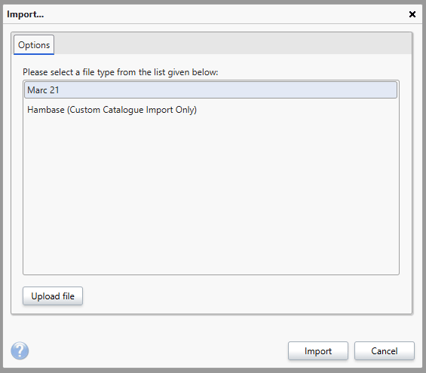
-
Click 'Upload' and locate the Marc file that you saved earlier and upload this.
-
Once the file has been uploaded and the window returned to the Import screen, click on 'Import'.
Whilst the file is being imported a spinning 'loading' wheel will be shown. If a large number of resources have been ordered, this upload could take a few minutes. A confirmation will will show when the file has been imported, displaying the number of records imported. Click 'OK' on this window to see the Bibliographic data within the Custom Catalogue table.
After importing the Bibliographic data the new stock will need cataloguing.
Get the most out of Reading Cloud with our flexible training packages delivered at a level and pace that suits your needs. Find out more.
How some of our other customers have phrased this
- I have a marc file, can I import this into Reading Cloud?
- How do I add resources in bulk?
- I have a .mrc file without pre-set barcodes, what do I do?