
Purpose
This article will explain the usage of the Page View Layout tab, which allows you to add or remove columns and their respective details to a view.
Instructions
The Layout tab is where the fields are chosen to appear in the view. For example, if a view to display only DVD's has been created in the Resource table, then you can add the Director and Composer fields to the Display Fields, whereas these fields would not be applicable to a book view.
The Layout tab allows you to:
- Alter the view description by typing in the 'Description' box.
- Alter the category to choose whether the view will display in Management or on the home page (OPAC).
- Select fields to add to the view from under 'Available Fields'.
- Use the arrows to move a field between 'Available Fields' and 'Display Fields'. Everything under 'Display Fields' will show in the page view.
- Alter the default column widths using the column separator lines.
- Refresh the 'Preview' when changes are made.
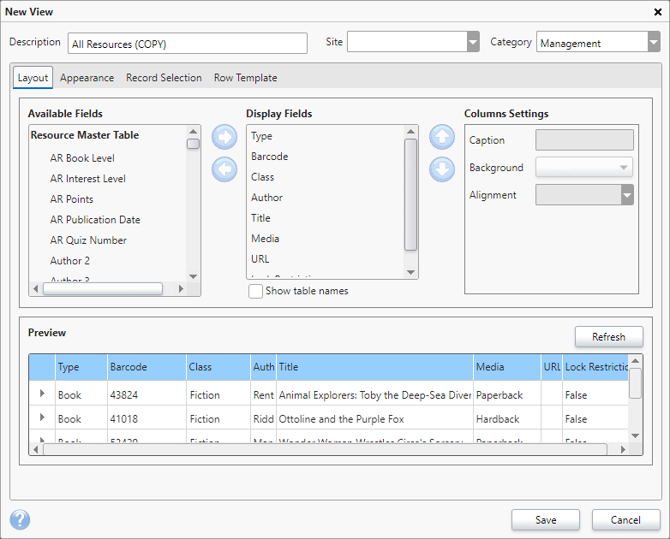
For example, if you wanted to be able to view a list of your students with their full names, Tutor and Year Groups, along with their Date of Birth, you can achieve this be creating a view. When in the Layout page, ensure that the following options appear in the Display Fields column:
-
Barcode
-
Forename
-
Surname
-
Year Group
-
Tutor Group
- Date of Birth
Then, you can save this view and selecting using the Views option in the Tools menu at the very top. Or select the view from the Views box in the bottom right.
The available fields will vary depending on the table you are on. In the Resource table, the majority of the available fields will be in relation on the resources and the data within them. This includes items like price, genre, class, author etc.
How some of our other customers have phrased this
- How do I add fields to a table?
- Can I change the columns that appear in a view?
- Is it possible to edit the information that appears in a page view?
Get the most out of Reading Cloud with our flexible training packages delivered at a level and pace that suits your needs. Find out more.