
Purpose
To detail how the Trending section can be amended if required
Covers: Trending search cloud options
Does not cover: Searching settings
Instructions
The system offers the flexibility to moderate the searched words that appear in the search cloud on the Homepage or to disable the cloud completely.
The Search Cloud is left unmoderated by default, there are however, certain expletives that will not display in the Search Cloud, even if regularly searched by the borrowers.
Moderating the Search Cloud
From the menu bar at the top of the Management screen, select 'Settings' and then 'Cloud...'.
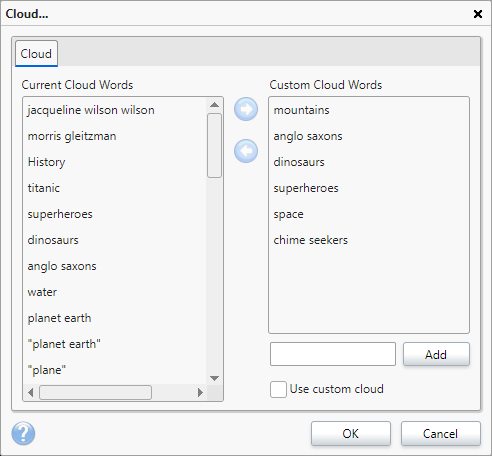
The Cloud window will open. On the left you can see the phrases borrowers have searched. To add phrases to a preferred list of search terms, select the phrase and press the right arrow button (the left arrow button reverses this process for a selected search term on the right).
To create custom search phrases, type them one at a time into the box below the 'Custom Cloud Words' box and click 'Add'.
To activate the custom search cloud, tick the 'Use Custom Cloud' checkbox. The cloud on the Homepage will now only show the phrases in the 'Custom Cloud Words' box. You can return here at any point and add more phrases as they are searched.
Click 'OK' to save any changes and return to the main Management window.
Disabling the Search Cloud
To disable/remove all words the Search Cloud, untick the box for 'Use Custom Cloud' at the bottom, leave the right box empty and press 'Ok'. Now when viewing the home page, the search cloud will be empty.
How some of our other customers have phrased this
- Can I edit the words that appear in trending?
- Can I turn off the Trending cloud?
Get the most out of Reading Cloud with our flexible training packages delivered at a level and pace that suits your needs. Find out more.