
ClickView is a 3rd party software solution, designed to assist learning in the classroom by providing a simple and complete solution for watching digital video and other digital media within a school. ClickView allows teachers and borrowers access to all of the digital video resources in the ClickView library. Using your hosted Reading Cloud Library System you can add your ClickView ID so that those available resources show when a pupil is browsing the catalogue from the homepage.
Online Catalogue
Once you have purchased a subscription from ClickView for their hosted offering, this provides access to the online catalogue of educational media the company has to offer. This would be achieved through contact with the ClickView team from their support page, this team would be best placed to provide the specific solution that meets your requirements.
Once subscribed, the ClickView team will provide what is known as the “School ID”. This will be a series of numbers and letters which must be entered into the library system so that the ClickView resources can be viewed in a search from the homepage.
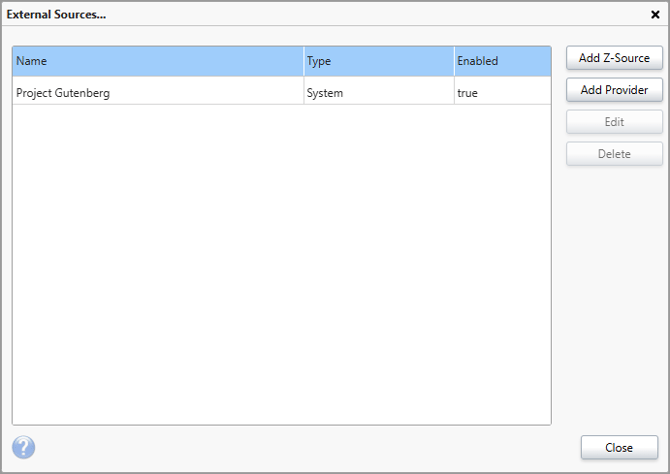
To do this, access the management page of your Reading Cloud library system, from the menu bar at the top of the page select 'Settings' and then select 'External Sources'.
In the box that appears, click 'Add Provider'.
Select "Click View" and then enter your 'ClickView ID' into the field provided.
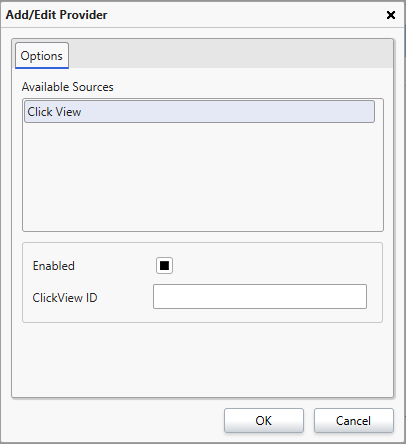
When entered, click ok.
Once this is done you can then view the ClickView Media.
Viewing ClickView Media
As part of the setup process, the ClickView team will have provided you with credentials to access the ClickView media (contact the ClickView team if this is not the case). These credentials are needed to access the ClickView resources from the front-end of the Reading Cloud library system.
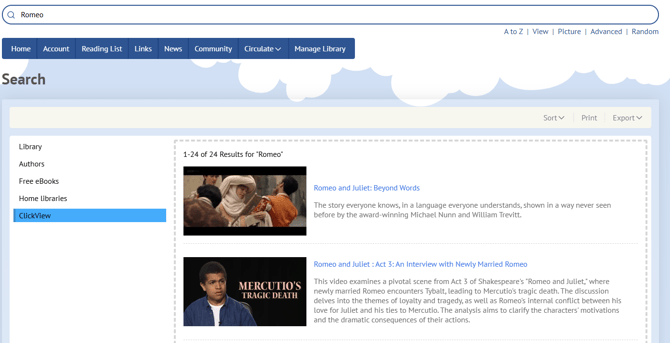
Access the Reading Cloud front-end interface and search for the desired ClickView resource using the quick search field. Then select ClickView from the options on the left.
Select the desired ClickView resource from the produced search results.
On the resource record page, select the 'ClickView' window and you will be redirected to the ClickView sign in page.