
Purpose
This article details the Star Review function, and how these can be selected
Covers: Setting a Star Review, viewing Star Reviews
Does not cover: Writing reviews, review templates or settings
Instructions
The Star Review feature allows you to promote well written borrower reviews on the homepage for everyone to see.
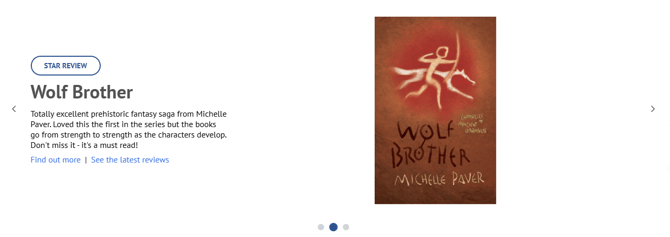
When a borrower has written a particularly good review, it can be marked as star review which will show on the homepage and promote the book they have read. This feature encourages social interaction, communication about books and reading in general.
Selecting a Star Review
To add a review as a star review, log into the library system as an administrator and load the Management page. Select 'Settings' on the menu bar at the top of the page and from the menu, select 'Module Settings' and then 'Social Settings'. If you do not see these options in the list, you are not using an account with administrator rights, speak to your administrator or contact us for help.
On the Social settings page, select the 'Home Screen' tab and then, next to 'Star Review:' select 'Change' to be taken to the Star Review settings, then select 'Add...'.
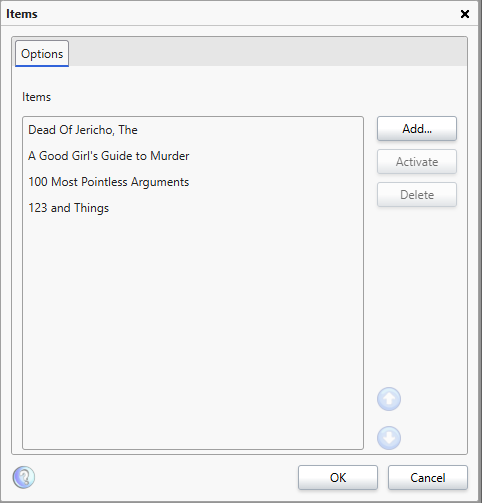
From the list, select the review(s) you wish to add to the star review list. If you wish to add multiple, they must be done one at a time.
If you have added the wrong review by mistake, select it and press 'Delete' to remove it from the list.
Select the review you wish to be the star review that shows on the homepage and press 'Activate'.
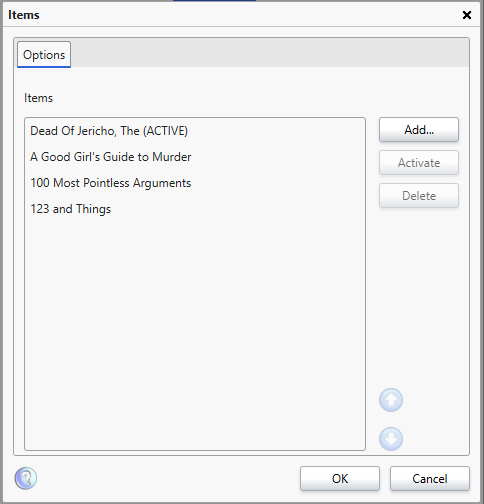
The review that has '(ACTIVE)' next to it will show on the homepage for anyone to view in the Star Review elemnt of the homepage. You may need to close and reload, or refresh, your browser for the new star review to show.
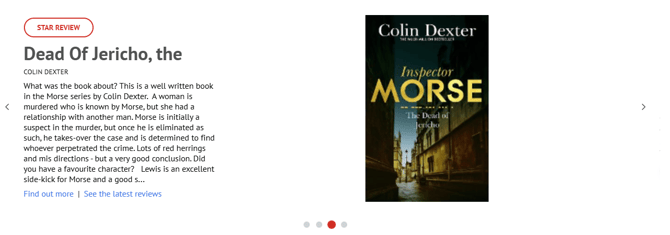
The system will automatically move onto the next review after 7 days.
Clicking on 'Star Review', the title of the book or the book image will load the resource for the borrower to view. The star review and all other reviews can be viewed from the bottom of the resource record.
Clicking on 'View More...', 'Latest Reviews...' or the '>' arrow will open a list of all reviews.
Borrowers need to be logged into the library system in order to be able to view other people's reviews.
Review not appearing in list for selection
If the review you wish to select and Add as a star review is not showing, please check that the review is Approved.
To do this, open the Review table by selecting the 'Reviews' option on the left of the Management screen. Then, select and open the review in question. Make sure that the 'Approved' box is ticked.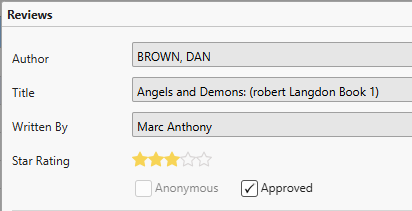
If not, tick the box and then save the review. This will ensure it displays on the relevant resource record, and is available to be selected as a Star Review.
Get the most out of Reading Cloud with our flexible training packages delivered at a level and pace that suits your needs. Find out more.