
A reading list is essentially a list of books. You can create as many lists as you like from the management page and assign them to your borrowers.
They can be assigned to an individual borrower, a particular tutor group, a whole year group, or a subject of study. Then all borrowers who meet the criteria, can access the reading list from either the Reading Cloud or Junior Classic Borrower Portals.
Reading lists are a great way to recommend resources to certain borrowers or groups, or the subject feature can be used to group resources for certain study projects or exams.
Both the librarian and the borrowers, are able to use the share option from Management or the Reading Cloud Borrower Portal to share a reading list via email, embedding in websites and many other ways. Sharing is not available in Junior Classic.
Reading Lists on Junior Classic
When you have created a reading list and shared it with the appropriate borrowers it will appear on the homepage for those borrowers once they are logged in.
In the bottom left corner of the homepage the borrowers will see the blue 'Reading Lists' flower.
Clicking this will open the 'My Reading Lists' box.
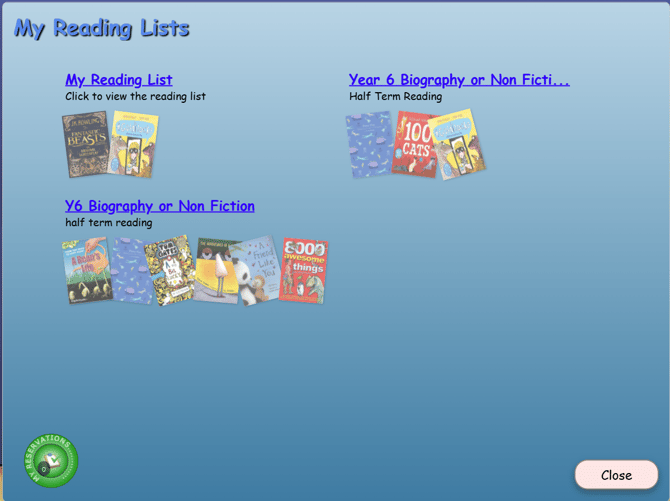
From here borrowers can browse all created reading lists; a selection of up to 6 of the books contained in each list are shown on this page. The borrower can hover over these books and click one to open its record, or they can click the header to be taken to a virtual shelf containing all the books in the list.
Borrowers can add resources to their own personal reading list from enquiry or from an already created reading list by clicking the blue 'Reading Lists' button in the resource, it will then be added to their personal reading list, titled 'My Reading List', this will always show first on the Reading Lists page unless there are no resources in it, in which case it will not appear. Resources can be removed from the reading list by clicking the same button on the resource.
Borrowers are also able to reserve books directly from this area. On each resource record page there is a green 'Reserve' button which will reserve the book for that borrower when pressed. Pressing this button a second time will remove the reservation. They are then able to view a list of their current reservations by selecting the green 'My Reservations' button from the bottom left corner of the 'My Reading Lists' page.
Reading Lists on Reading Cloud
When you have created a reading list and shared it with the appropriate borrowers it will appear on the homepage for those borrowers once they are logged in.
In the bottom left corner of the homepage the borrowers will see the blue 'Reading Lists' flower. Clicking this will open the 'My Reading Lists' box.
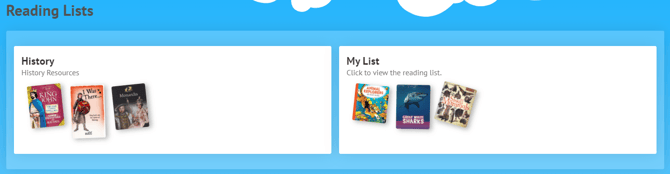
From here borrowers can browse all created reading lists; a selection of up to 6 of the books contained in each list are shown on this page. The borrower can hover over these books and click one to open its record, or they can click the header to be taken to a virtual shelf containing all the books in the list.
Borrowers can add resources to their own personal reading lists or to lists created by the librarian by clicking the blue 'Add to List' button in the resource record, they can then select an already created list or create a new one. Resources can be removed from the reading list by clicking the 'Remove' button from within the reading list.
Borrowers are also able to reserve books directly from this area. On each record there is a green 'Reserve' button which will reserve the book for that borrower when pressed, pressing this button a second time will remove the reservation. They are then able to view a list of their current reservations by selecting the 'Reservations' tab on the 'My Account' page.
Get the most out of Reading Cloud with our flexible training packages delivered at a level and pace that suits your needs. Find out more.