
Purpose
To explain the Barcode Mask function.
Covers: Understanding barcode masks, modification masks and return the value
Does not cover: Creating or editing a mask
What is a Barcode Mask?
If you are cataloguing a new resource or adding a new borrower, and you scan a barcode you may see the below question appear: 'Do you want to create a new mask for this barcode?'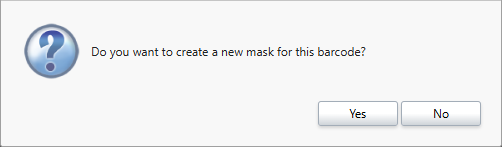
This message means that the barcode you have scanned does not have a corresponding mask. This can happen if the barcode entered is longer or shorter than other records already in your database.
Barcode masks are used to read and interpret barcodes when scanned. They can apply rules to how it should be output or displayed. In short, the mask reads the input from the scanner, translates it accordingly and outputs the result.
If the "new mask" message appears, this usually means you need to create a mask to help the system interpret this type of barcode moving forwards. Creating or updating the masks settings relevant to the barcode you have scanned with prevent this message from appearing.
The keys to understanding and setting up accurate barcodes masks are:
- Knowing the actual barcode number on the physical barcode label.
- Knowing what you want the final barcode number to look like in the library system.
1. The Number That Is being Output by the Scanner
First you need to know exactly what the physical barcode value is, it is normally printed above or below the barcode, but there may be hidden characters. The most effective way to determine the actual barcode is to scan it into a neutral program, such as Microsoft Notepad.
2. The Number of the Resource/Borrower in the System
Now you need to know what you want the barcode to look like in the library system. If you have already added the resource/borrower to the library system, locate it in the appropriate table and note the barcode. If you are yet to add it, you just need to decide what you want it to look like.
Here are some examples of the changes barcode masks can make to barcodes.
- 04958 > 4958
- A2654B > 2654
- R0025978T25H > 25978
As you can see, barcode masks are able to modify the barcode by stripping leading 0s and/or removing any unnecessary characters.
Why would I want to modify barcodes?
The purpose of modifying your barcodes and stripping out certain characters is mainly to make them easier to find and see in management.
For example, you may receive some resources from your SLS with preassigned barcodes, these barcodes could be upwards of 10 digits long, and many of the characters in the barcode are the same for every resource making them unnecessary when searching for the book. You can use a barcode mask to strip this unneeded characters, so that only the unique characters show when looking in management, making them neater and easier to find.
Understanding Barcode Masks
When creating or editing a barcode mask, it is essential to fully understand the different symbols and the purposes of the different sections of the barcode mask area.
Barcode Mask
The barcode mask is what reads the barcode when it is scanned, therefore it needs to depict what the barcode currently looks like, not what you want it to look like.
In Mask you need to enter one symbol for every character of the barcode. if the character is a number (0-9) use a hash #, if the character is anything else use an asterisk *.
- 02856 - #####
- RS17784Q12 - **#####*##
- A2501264 - *#######
Do not use anything other than a hash or asterix in a barcode mask, you cannot use a specific character in a barcode mask, even if every barcode has that very character.
Modification mask
The modification mask is used when what is shown in the library system is or needs to be different from what is shown when scanning in notepad, and that difference is not simply leading 0s, can be used to remove numbers or characters if needed. A modification mask is not mandatory. If you do not wish to edit the barcode, or the only change is removing leading 0s, then the modification mask should be left blank.
In Modification Mask you again need to enter one symbol for each character, this time a question mark ? if the character is to be kept and a percentage sign % if that character is to be removed.
- 02856 - Modification Mask = <Blank> - 02856
- RS17784Q12 - Modification Mask = %%?????%%% - 17784
- A2501264 - Modification Mask = %%%????? - 01264
A modification mask cannot be used to add digits or characters.
Return the Value
The Return the Value tick box is used to remove leading 0s from the barcodes. Return the value takes place after the modification mask, so if you have leading 0s after removing a leading character, they would then be stripped.
With Return the Value ticked:
- 02856 - Modification Mask = <Blank> - 2856
- RS17784Q12 - Modification Mask = %%?????%%% - 17784
- A2501264 - Modification Mask = %%%????? - 1264
Now that you understand what a barcode mask does, you are ready to start creating one.
Get the most out of Reading Cloud with our flexible training packages delivered at a level and pace that suits your needs. Find out more.
How some of our other customers have phrased this
- What is a barcode mask?
- Why am I being asked to create a new mask?
- What is a modification mask?
- What does Return the Value mean?
- How do I stop the new mask message appearing when cataloguing books?
- Remove new mask prompt