
Purpose
This article gives information on the various sections and fields available within the Advanced tab in a Borrower record card
Covers: Advanced tab of Borrower Record
Does not cover: Advanced tab of Resource Records
Instructions
The Advanced tab stores additional details for each borrower such as their logon name and password, management system ID, any user defined custom fields and more.
The Advanced tab is split into 5 sections:
Security
Contained within the Security section is the borrower's logon name, PIN, and the security group. These options are used when assigning login details to an individual borrower.
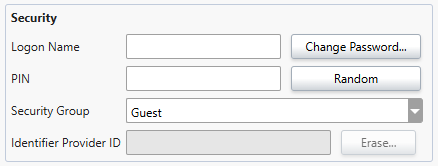
The 'Logon Name' box contains the logon name (user name) of the borrower.
The password of the borrower is not stored in readable form, the 'Change Password...' button is used to reset the borrowers password when they have forgotten it.
It is possible to globally assign a unique logon name and password for each borrower in the system.
The 'PIN' is only used for SIP2 and is very rarely used. To allocate a borrower a random PIN, click 'Random'. The 'PIN' field is not used to log into the Reading Cloud Mobile App or the home page, this is the logon name and password.
The 'Security Group' box displays the security group the borrower is currently assigned to, the menu shows all available groups.
Restrictions
The Restrictions field of the Advanced Tab of a borrower record card shows the current restriction group that a borrower is assigned to. By default, the group specified in the respective tutor group is selected. However, you can select a specific group for this borrower from this menu.
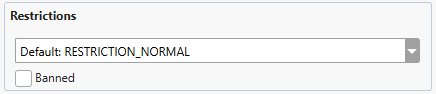
If you require a new group, you will need to create one.
To ban a borrower from borrowing any books in the library and from logging on, click ‘Banned’.
Please be aware, if you specify a restriction group for a borrower via this method and later change the restriction group for the same borrower's tutor group, the latter change will not be applied and they will keep the specific group they were given.
Other Information
The Other Information area holds the borrower's management ID, RFID and site name. These fields are optional, but it is recommended to enter the correct Management System ID of a borrower.
The Management ID is a unique identifier which is allocated to the student from the Management System used in your organisation. The field referenced in this system may not be labelled Management ID however, it may be called Student Reference, Pupil Number, admission number or various other names. Check with the person responsible for managing the Management System for more information. This field is particularly important as it is used to match Borrowers when importing via CSV or an automated method.
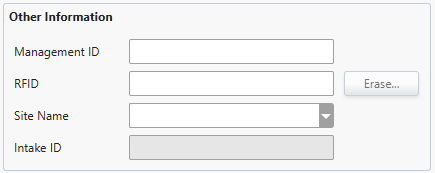
The RFID field is for storing the RFID string associated with a borrower if this implementation is being used in your organisation. Type the correct RFID number for the borrower into the text box or scan the RFID card to add it. To Erase any text in this field, click 'Erase...'.
The 'Site Name' box allows the borrower to be assigned to a designated site if you use a multi-site license.
Intake ID is a value that is assigned to each if your school uses RC Intake to sync data via Wonde. If the record was created manually, and has never been matched with a record via a sync - then this field will be blank.
Custom Fields
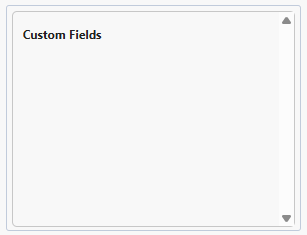
The custom fields section shows any user-defined custom fields for a borrower record. The system offers the ability to define custom fields which can be anything that is not present on the details tab.
By default, this section will be blank. This will populate with any Custom Fields created under the Borrower heading.
Application Interface
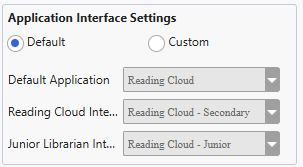
If you have access to both the junior and senior versions of Reading Cloud, you can assign an interface to a borrower on an individual basis so that when they log in, they are presented with the appropriate interface. To do this go to the borrower’s record card and select the ‘Advanced’ tab.
Under ‘Application Interface Settings’ you will see 2 radio buttons. To assign a specific interface to a borrower select ‘Custom’ and then assign them the appropriate interface using the boxes below. To give them the default interface of your library system select ‘Default’, this will assign them the interface set at the tutor group level.
How some of our other customers have phrased this
- Where do I find a Borrower's MSID?
- Can I change an individual borrower's security group?
- Where is the Ban toggle for a borrower?
- Can I amend the restriction group for one borrower?