
Purpose
To provide troubleshooting information for the import and transferring processes including common resolution steps. This does not cover troubleshooting RC Intake or Wonde syncs, please refer to the Troubleshooting RC Intake article.
Tip: Streamline your student data management with Intake. Find out more here.
All Pupils Are Showing Within the Intake Table and None Have Been Matched
This is caused by either the management ID or the borrower's forename or surname not matching up with the imported CSV file.
CSV Has Been Opened in Excel
Opening a CSV file in Excel applies formatting to the fields by default. Some of the fields, such as 'Management System ID' (MSID), will have any leading zeros stripped off. When your management system is SIMS for example, it nearly always contains leading zeros in this field, (001234). When opened in Excel, the leading zeros are removed (1234).
For example, a borrower has a MSID of 001234. A CSV file is imported, containing the number 1234 as the MSID as the CSV has been opened in Excel. No existing borrowers have the number 1234 so the pupil is thought to be new and stored in the Intake table.
If this issue matches what you are experiencing, we recommend clearing the intake table completely and recreating the CSV file. If you need to modify it, use a text editor such as Notepad instead of Excel.
Incorrect Management ID Field
Exporting an incorrect MSID can cause the borrowers to not match.
Open the file with Notepad and take a note of an existing pupil's MSID on one of the rows. Note that the name of this header may vary depending on the system it has been exported from ('ADNO', 'ManagementSystemID', 'Roll No' etc.).
Check the corresponding record in the Borrowers table, within the library system. If the two match exactly then this is not the issue. If they are completely different (for example, one contains letters) then a different field has been exported or the MSID has been reformatted. In this circumstance, the file will need to be recreated from the Management system and must include the correct field.
Changed Management Systems
It could be that since the last time an import was run, the management system has been changed. In the event of this happening, we can assist you by removing the MSID for all existing borrowers, meaning that the system will fall back to matching on Forename and Surname. Contact us for further assistance.
Forenames/Surnames Not Matching
If there is no MSID against the existing borrowers in the library system, the system will fall back to matching the pupils based on their forename and surname. However, if these fields do not match, then the system will not be able to match up the records in the CSV with those in the library system.
To ensure that the surname and forenames match exactly, check some of the records in the CSV (using Notepad) against some of the records in the library system. You may find that they do not match due to spelling mistakes or because the preferred or legal forename/surname is used. If this is the case then you will need to recreate the file ensuring that they will match, then re-import the CSV. If there are only one or two borrowers then it's likely easier to match them manually.
Names with Accented Characters Not Displaying Correctly from CSV import
When importing students with accented characters in their name, you may see that the accented characters do no display correctly. For example, 'Rafael João Luís Pires', Would be changed to 'Rafael Jo?o Lu?s Pires'. To fix this you must save the CSV file using the Unicode encoding standard and then reimport the CSV file. The option to save a file in 'Unicode' is located on the Windows 'save' dialog box when saving from an application like Notepad or one that supports changing the encoding.

To do this click 'File' then 'Save' making sure that the 'This PC' option is selected then below the name there is a menu, select 'Unicode Text' from this and then click 'Save'.
Mandatory Fields Missing Error When Importing
This error occurs when not all of the required headers are present on the first line of the CSV.
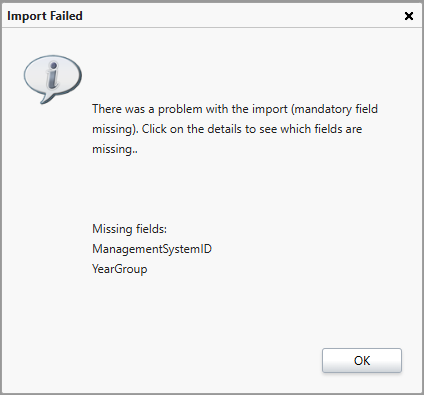
Certain mapping options require differently labelled headers, so make sure that at minimum, the mandatory fields are specified with the correct spelling. The system tells you the fields that are missing. Double check that the file has been created according to the guidance for your MIS.
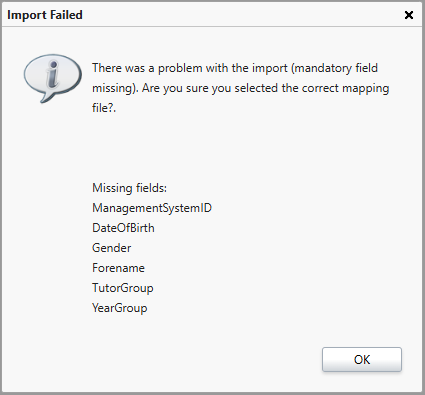
In addition, this message is presented when the wrong 'mapping' option has been selected from the import window, particularly if there are many fields that show when clicking 'details' on the message. If this is the case, ensure that the correct import option is chosen when the file is imported.
There Is No Error Message but Data Is Showing in the Wrong Fields on One or More of the Rows
This issue can have one of two causes. The first is a comma being inserted in the wrong place. The second is because the column's headers have been labelled incorrectly.
Additional Comma(s)
If this happens, it can cause the data to become displaced, shifting the data across to the wrong field.
ManagementSystemID","Forename","Surname","DateOfBirth","Gender","TutorGroup","YearGroup"
"00056789993888","Joe","Bloggs","05/05/1985",,"Male","10Green","10"
The additional comma between the date of birth and gender fields would cause the data to offset, meaning 'Male' gets import into the TutorGroup field and so on.
One way to identify this is to use the 'find' function with the CSV open in notepad. Open the CSV and press 'CTRL' + 'F' on the keyboard. In the 'find' box, type ',,' and click 'Find Next'. This should highlight any double commas. Of course in some cases such as when the field is empty, this would be correct so you may have to check each occurrence for the problematic one(s).
Another situation where this can occur is when quotation marks are not used while importing address details. Often the first part of the address will be added into the first line with a comma (10, Downing street), when exporting this data to a CSV it adds an extra comma which knocks the data down a field.
ManagementSystemID,Forename,Surname,Address1,Address2,Postcode,DateOfBirth,Gender,TutorGroup,YearGroup
00056789993888,Joe,Bloggs,10, Downing Street,London,SW1A 2AS,05/05/1985,Male,10Green,10
The extra comma in the first line of the address means that all following fields are knocked down to the next, the postcode would be added to the date of birth, the date of birth into gender etc.
This can be corrected by putting quotation marks around the affected field. Open the file in notepad and locate any field where this has occurred and put quotation marks around the field in question.
ManagementSystemID,Forename,Surname,Address1,Address2,Postcode,DateOfBirth,Gender,TutorGroup,YearGroup
00056789993888,Joe,Bloggs,"10, Downing Street",London,SW1A 2AS,05/05/1985,Male,10Green,10
Incorrect Column Header
If the columns are not labelled against their respective fields correctly then it is easy to import data into the wrong field.
"ManagementSystemID","Forename","Surname","DateOfBirth","Gender","TutorGroup","YearGroup"
"00056789993888","Bloggs","Joe","05/05/1985","Male","10Green","10"
Notice that the 'Surname' ("Bloggs") is currently set to import into the 'Forename' field and vice versa. To correct, open the file with Notepad and alter the field headers.
Index Is Out of Range. Must Be Non-Negative and Less Than the Size of the Collection
This message occurs when attempting to import a CSV file into the Borrowers or Resources table rather than the Intake table. Import your CSV into the Intake table to resolve this issue.
Object Reference Not Set to an Instance of an Object
This message occurs when the CSV file has been imported into the Borrowers table rather than the Intake table or when no CSV file has been uploaded from the Import window. Import your CSV into the Intake table to resolve this issue.
Troubleshooting Transferring
Borrowers Still in the Intake Table after Transferring
If you have attempted to transfer your students but they remain in the Intake table, refresh management (click the green arrow next to quick search, or by pressing F5 on your keyboard) and check your Intake table again, compare the number in the top right-hand corner before and after refreshing, if it has gone down, the students are transferring, it's just not yet finished. If the numbers are the same and the students still remain, are you using the MSID barcode option? If so, check that the MSID of the students are not already in use as barcodes as this will prevent the transfer:
- Change the barcode of the existing borrower.
- Use the automatic option when transferring.
If you imported a CSV, and you imported LogonName as an additional field, check that the logon names for any student not transferring are not already in use. A logon name must be unique, and a borrower account cannot be transferred if it would create a duplicate logon name.
Wrong Barcodes After Transferring
If you have accidently transferred using the wrong barcode option (transferred as automatic instead of Management system ID or vice versa):
- Delete the borrowers that have been incorrectly transferred and reimport the CSV or request a resync (if using an automatic sync). Then once reimported, transfer again - selecting the correct option.
- Raise a script request through Support to have all borrower barcodes updated to the correct format.
How some of our other customers have phrased this
- Pupil records haven't transferred and stuck in Intake
- Transferred but picked Automatic by mistake
- Accidentally selected Management ID instead of Automatic
- Can't transfer my intake
- CSV Import failed
- I imported my CSV, but data is in the wrong fields