
Purpose
To detail the creation and editing process for page views
Covers: Creating a new page view, editing page views
Does not cover: List of existing views, amending borrower or resource information
Instructions
To create a page view, you will first need to access the list of page views, click on 'More...' under 'Views' on the right-hand side of the Management screen. Make sure the table from which the desired view will be based is selected first because different page views can be created in each table. This can also be accessed by clicking 'Tools' in the top menu, and selecting 'Views...'.
The main views screen will appear as below.
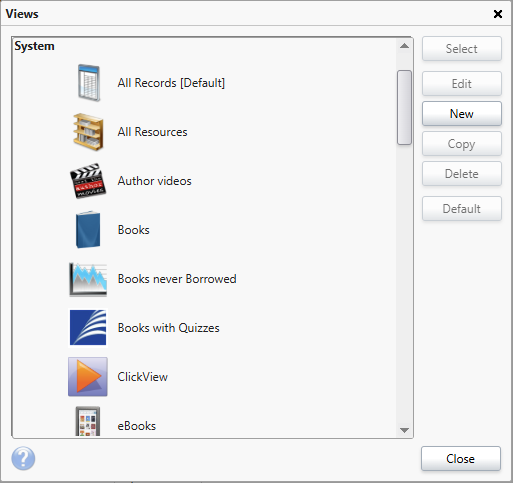
There are several options from the views screen.
|
Button |
Description |
|
Select |
This opens the highlighted view. |
|
Edit |
This allows an existing view to be modified. To change the columns a view displays, to alter the appearance, the record selection or the row preview. |
|
New |
This allows the creation of new views. |
|
Copy |
Duplicates the currently highlighted view to allow easy modification. Any views that are copied will be created with (COPY) added to the description. |
|
Delete |
Removes the highlighted view. Views under the 'System' heading cannot be deleted or edited. |
|
Default |
This will make the highlighted view open automatically when the table is loaded |
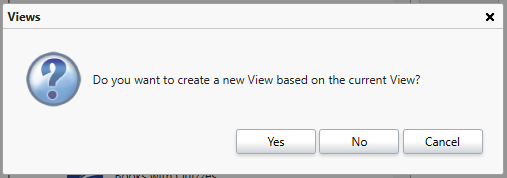
To start creating a new view, click 'New' from the selection of buttons on the right hand side. A prompt will display asking if the new view should be based on the existing one. This can be helpful as a starting point as it will copy the format of the existing view, if this is preferred click 'Yes'. However, in some cases it may be preferable to start from scratch, in which case click 'No'.
The Page View editing interface will now be displayed where there are four tabs, each offers customisation features for the view.
Once the settings on each tab have been modified appropriately, click 'Save'.
You will return to the main views screen and the new view will display in the list.
Editing an existing page view
When you have created and saved a page view, you can return to it and edit it at any point. If for example, you need to tweak the search parameters or appearance of the view.
To do this, open the Views menu and select the view you wish to amend. Then click the Edit button. This willow allow you to access to the Layout, Appearance, Record Selection and Row Template options. Once you have completed any adjustments, click save.
Note that certain views under the System and OPAC headings cannot be edited, when selecting one of these views, the 'Edit' option will be greyed out.
Altering sort order
Once the view has been created, you can utilise the headers to change the sort order of the data.
Clicking on a header within the table will sort the data by that field. Primarily this will be in ascending order, so symbols and numerical values first, followed by A - Z. If you click again, this will reverse to descending order, beginning with Z - A, then numerical values and symbols.
You can also right click within the table and select the 'Sort' option from the small menu that appears. 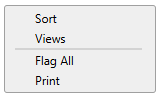
This will open a box where you can select from the fields available in the active table (e.g. Borrowers or Resources) to define the sort order. For example, you can set names within the Borrowers table to be sorted primarily by Surname, then Forename. This would group all surnames in order, and keep each forename within that group in order also.
Select the field from the options on the left, then click the 'Right' arrow to move it to the selected fields.
You can change the order by clicking on a value within selected fields, then click the arrows on the right to move the chosen field.
You can also specify whether a fields default sort should be ascending or descending by selecting it, and clicking the 'Ascending / Descending' button'. It's current setting is displayed next to the field in brackets.
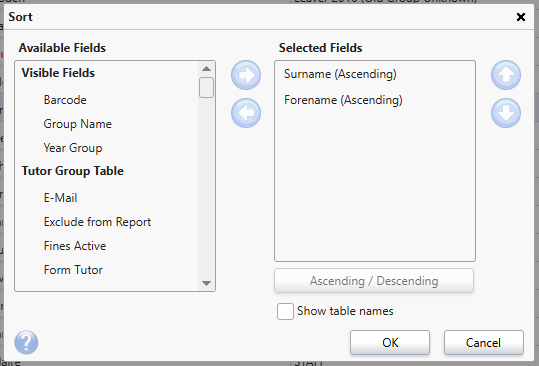
Once you have made you selections, press ok to apply the sort settings.
Get the most out of Reading Cloud with our flexible training packages delivered at a level and pace that suits your needs. Find out more.
How some of our other customers have phrased this:
- How can I add other fields?
- Add more information to view
- Can I add fields to the blue bar on the management page?
- How do I add extra fields?