
Purpose
To provide information on the usage of the Quick Search function
Covers: Quick Search usage
Does not cover: Advanced search, Flag by Barcode
Instructions
The Quick Search box is a simple and quick way to locate records in the library catalogue. A single word/phrase or number can be typed in and the application will try to find the best results in that table. Quick search allows you to search the view for matches in multiple fields such as ISBN, Author, Year and Tutor Groups - depending on the table you are looking at.
If a more detailed search is required, involving multiple criteria then you need to use Advanced Search. Quick Search is available in each area of the application and will only return results from the respective table.
Note also that a Quick Search only searches the current page view so if a view of only textbooks is selected the system will only search through these records, and will not show results for other items.
Get the most out of Reading Cloud with our flexible training packages delivered at a level and pace that suits your needs. Find out more.
Using Quick Search
Open the table that is to be searched. To perform a quick search in that table, locate the Quick Search box at the top right of the screen.
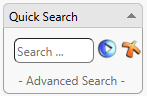
Type the word/phrase or number into the box and press the Enter key on your keyboard or click the arrow icon to perform the search.
The results will then display in the table.
Other Things to Note
Quick search can be customised as necessary to search through a specified number of fields.
When using quick search, all fields are searched on an 'including' basis. Meaning any search will return results that match the search, but also those that contain the searched value. For example, If the word ‘plane’ is entered, the system will return matches for any words which include plane (planets, aeroplane etc). If you find you are getting too many results, try using a more specific term, if you are not getting any results, it may be because you are using too specific a search.
Scanning into Quick Search
Do not scan a barcode into the quick search box. This is because the 'barcode masks' do not apply to the 'Quick Search' function, so scanning into quick search may not pull correct items or return no results.
If you are only looking for one resource, load the relevant table (Resources, Borrowers etc.) and click anywhere on the page that isn't the quick search box, then scan the barcode. The masks will apply and if there is a match, the book/borrower will be loaded on screen. If you wish to use the barcode scanner for multiple resources/borrowers we recommend using Flag by Barcode.
How some of our other customers have phrased this
- What is quick search?
- How should quick search be used?
- Can I use my scanner with quick search?